

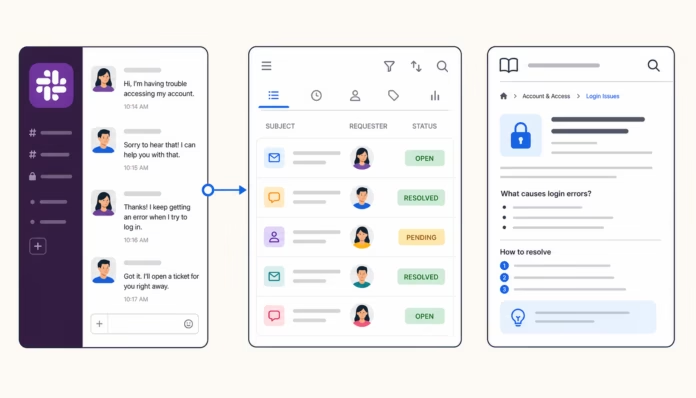

Every helpdesk you evaluate these days will tell you it integrates with Slack. What that actually means ranges from “we send a notification when a ticket is opened” to “your team can resolve tickets, respond to customers, and search the knowledge base without ever leaving Slack.” The gap between these two realities is enormous.
Most teams realize this after the fact. They configure the integration, see a few notifications appear in their system #support-alerts, and realize that anything beyond reading these alerts still requires opening a browser tab.
This article covers seven tools across the spectrum—from simple notification relays to tools where Slack becomes your primary support interface. For each, I’ve reviewed the official documentation, setup guides, and user feedback to map out exactly what you can and can’t do from within Slack, and which pricing tier unlocks it.
This is what makes Slack integration really useful.
Before the list, it’s worth naming what truly distinguishes a useful Slack integration from one that simply adds noise to a channel.
Depth of action. Can agents create tickets, respond to customers, update statuses, and close tickets from within Slack? Or is Slack read-only?
Access to knowledge. Can the integration display relevant help articles in Slack so that agents don’t have to switch tabs to search for information?
Plan-based restriction. Is the integration available in the plan you’re actually using, or are the necessary features locked behind an enterprise tier?
Synchronization reliability. If a reply is sent from Slack, does it appear correctly in the helpdesk? Do replies in Slack threads remain attached to the original ticket?
Here’s how the seven tools compare according to these dimensions:
| Tool | Create tickets | Reply from Slack | Update the fields | KB search in Slack | Slack plan requirement |
|---|---|---|---|---|---|
| eesel AI | Yes (AI as a priority) | Yes (standalone or draft) | Yes | Yes | Team ($299/month) |
| HappyFox | Yes (3 methods) | Yes (3,000 characters) | Status, priority, assigned | Yes (command slash) | Team Plan (~$69/agent) |
| Forehead | Yes (message action) | Yes (bidirectional) | Yes (interactive buttons) | No | All plans ($25/seat+) |
| Zendesk | Yes | Internal notes only | No | Yes (Answer Bot) | All paid plans; Side Conversations: Professional+ |
| Freshdesk | Yes (NA region only for cmd slash) | Yes | Status, priority, assigned | No (requires the Freddy module) | Growth ($19/agent) |
| Help Scout | No | No | No | No | Standard ($25/user) |
| Zoho Desk | Yes | Yes | No | No | Free extension (plan not specified) |
Here is the complete analysis.
1. eesel AI — the best for AI-powered support from Slack
eesel AI takes a different approach from everything else on this list. Rather than being a helpdesk with added Slack integration, it’s an AI agent layer that sits on top of your existing helpdesk and transforms Slack into a standalone support interface.
Setup is a one-click installation from the Slack App Directory. eesel joins your workspace as a bot, you invite it to the relevant channels, connect your helpdesk (Zendesk, Freshdesk, Help Scout, Gorgias or others) and your knowledge sources (Confluence, Notion, Google Drive, past tickets), and it starts working.
What eesel has been doing since Slack
When a user @mentions the bot or sends a direct message, eesel queries all connected knowledge sources and responds—not with a generic answer, but with a response citing the actual policy document or help article from which it is taken. If it can fully resolve the request, it handles it autonomously. If confidence is low, it queues a draft for human review rather than sending a potentially incorrect response.
For support teams connected to a helpdesk, eesel can:
- Write and send responses to open tickets
- Resolve tickets and update their status
- Route tickets to the appropriate agent group
- Escalate to human agents when AI reaches its limits
- Add private notes
- Generate KB articles from recurring questions he couldn’t answer
For IT teams, the use case is level 1 deflection : eesel listens in the channels #it-help, attempts to resolve requests from the knowledge base, and only creates a ticket in ServiceNow or Jira Service Management when it really cannot help — passing on the full context of the conversation when escalating.
The multi-bot architecture deserves to be highlighted. A single eesel account can run separate specialized bots for HR, IT, sales, and customer support — each drawing on its own delimited knowledge and operating in its own Slack channels.
Gridwise, which handles high volumes of support through Zendesk, saw a level 1 resolution rate of 73% in the first month after connecting eesel. The company reports an average response time of 1.8 minutes .
Prices
| Plan | Monthly | Annual | Interactions/month |
|---|---|---|---|
| Team | $299 | $239/month | 1,000 |
| Business | $799 | $639/month | 3,000 |
| Custom | Contact sales | — | Unlimited |
A per-task pricing option is also available at $0.40 per regular task (tickets, chats) with a $50 free trial upon registration.
The main limitation to be honest about is that eesel is a second paid tool on top of an existing helpdesk subscription. You’re not replacing Zendesk—you’re adding AI on top of it. For high-volume teams, the cost is worthwhile. For teams with a low ticket volume, the fixed-price plans (especially the Team tier with 1,000 interactions per month, or about 30 per day) may seem restrictive.
Ideal for: Support and IT teams who want AI to resolve tickets directly from Slack, without agents needing to open the helpdesk interface.
2. HappyFox — the best-performing native Slack helpdesk integration

Among traditional helpdesks, HappyFox boasts the most robust Slack integration. It goes far beyond notifications: agents can create tickets, respond to customers, update ticket properties, and search the knowledge base—all without opening the HappyFox agent dashboard.
The Slack integration page describes it as “real-time, two-way synchronization,” which accurately describes its function. The integration is a dedicated app on the Slack Marketplace .
What HappyFox has been doing from Slack
Ticket creation works in three ways: the slash command /happyfox new_ticket(works from anywhere), a message action on any Slack message (right-click → “Create a ticket”), and the global shortcut via the lightning bolt icon. The creation form includes the Subject, Category, Message (pre-filled from the source message), and custom fields.
Ticket replies are comprehensive responses intended for customers, up to 3,000 characters per reply . Agents need the “Add a reply via the agent panel” permission.
Ticket updates in Slack cover three fields: assignee, priority, and status. More complex changes require the HappyFox interface.
Notifications cover eight types of events: new ticket, contact response, agent response, category change, agent private note, assignee change, SLA violation, and ticket closure. Multiple categories and event types can be routed to a single channel or distributed across separate channels by event type.
Knowledge base search works via /happyfox search_kb [mot-clé]— agents get relevant KB articles in Slack without leaving the interface.
Smart Rules add condition-based logic to notifications: HappyFox can only post to Slack when specific conditions are met (Priority 1 ticket opened, SLA about to be violated for a specific category, etc.), thus reducing channel noise.
A notable addition is HappyFox Workflows , which adds DM and channel messaging as workflow-triggered actions — useful for escalating alerts to team leaders or for automatically posting periodic summaries.
Prices
| Plan | Price (annual) | Slack integration |
|---|---|---|
| Basic | ~$21/agent/month | Not included |
| Team | ~$69/agent/month | Included |
| Pro | ~$119/agent/month | Included |
| Enterprise Pro | Custom made | Included |
HappyFox restructured its pricing in June 2025 , renaming the tiers from Mighty/Fantastic/Enterprise to Basic/Team/Pro/Enterprise Pro. If you are on the old pricing, please verify that your plan name corresponds to your current Team tier or higher for Slack access.
Known limitations: only one Slack workspace per HappyFox account, and agents can only edit three ticket fields from Slack (assigned, priority, status). Anything beyond that requires returning to the agent panel. Custom dependent fields also cannot be populated when creating tickets in Slack.
Ideal for: medium-sized support teams who want to perform real ticket tasks from Slack without moving to an enterprise level.
3. Front — the best for turning Slack channels into a support inbox
Front adopts a fundamentally different architecture from all the other tools here. Instead of your helpdesk notifications passing through Slack, Front connects Slack channels as full Front inboxes — so that messages in those Slack channels become conversations that the support team manages from Front, with replies syncing in real time to Slack.
This makes Front the right choice when your customers or internal teams are already communicating in Slack, and you want that traffic handled with proper triage, allocation, and SLAs rather than getting lost in the channel scroll.
What Front has been doing from Slack
Slack channels as inboxes: Any public, private, or shared Slack Connect channel can be connected as a Front inbox. Messages arrive, agents manage them from Front (or from interactive Slack message buttons), and replies appear in Slack as if the agent had sent them natively.
Two-way synchronization covers message replies, emoji reactions (standard Slack emoji only — custom workspace emoji are excluded), rich text formatting, message edits (displayed with a “Modified” indicator in Front) and deletions.
Three thread strategies give administrators control over how Slack messages are associated with Front conversations: group consecutive messages from the same user into one conversation, treat each top-level message as a separate conversation, or gather all messages into a single ongoing conversation. The choice depends on the channel’s volume and the level of detail you want to track each interaction.
Interactive messaging buttons (optional) appear on Front messages in Slack, allowing colleagues to assign, archive, reopen, or move conversations without leaving Slack. These actions run in Front without requiring a login.
Sending conversations to Slack works both manually (three-dot menu → “Send to Slack”) and via automation rules (e.g., tag-based routing: “When conversation tag = VIP, post to #vip-alerts”).
Slack integration is available on all Front plans — from Starter to Enterprise — at no additional cost beyond the subscription.
Prices
| Plan | Price (annual) | Notes |
|---|---|---|
| Starter | $25/seat/month | Up to 10 seats, single channel type |
| Professional | $65/seat/month | Up to 50 seats, omnichannel |
| Enterprise | $105/seat/month | Unlimited seats, AI Copilot included |
Front’s pricing has drawn complaints in user reviews. Capterra reviews note sharp price increases and the application of minimum seat requirements on higher plans. It’s worth considering this before committing.
Limitations: Slack DMs cannot be connected as inboxes (only public/private/Slack Connect channels), there is no historical backfeed of messages sent before the integration was set up, and messages generated by Slack bots are not ingested as Front conversations. Email threads still require the Front interface rather than Slack.
Ideal for: operational teams, logistics companies, or any team where customers or internal stakeholders already communicate in Slack and need appropriate support tracking for these conversations.
4. Zendesk — the best for enterprise teams requiring bidirectional Slack channels
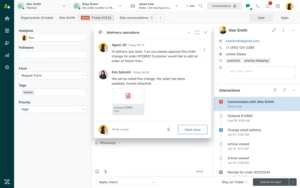
Zendesk’s Slack integration is a native application maintained by Zendesk, and it is divided into two very different capabilities depending on your plan.
At lower levels, it’s primarily a notification system with ticket creation. On Professional and above, the truly powerful integration feature — Side Conversations — is unlocked.
What Zendesk has been doing from Slack
Ticket notifications are triggered by specific triggers you configure in the Admin Center. Each card displays the ticket subject, status, account, timestamp, and a link to the ticket. Agents can add internal notes directly from a notification card (More actions → “Add as internal note”), available on all paid plans.
Ticket creation works via four entry points: the slash command /zendesk, a message action on any Slack message, the Home tab of the Zendesk sidebar app, or by mentioning it @zendeskin a Slack Connect channel. Every ticket created from Slack automatically receives the tag created_from_slack. One limitation: the Assigned field on tickets created from Slack only accepts Zendesk groups, not individual agents.
Side Conversations (Professional level + Collaboration add-on ) are where Zendesk’s Slack integration becomes truly valuable. An agent opens the contextual panel within a ticket, selects Side Conversations, chooses a Slack channel, and starts a two-way conversation. Team members in Slack can reply without logging into Zendesk—these replies sync to the ticket as internal notes in about 5 seconds. Agents can mark the conversation as complete and use its status as a trigger condition.
The practical use case is internal escalation: a customer support agent creates a side conversation with the engineering Slack channel when a bug is reported. Engineering responds in Slack without needing a Zendesk account, and all the exchanges live within the ticket.
Answer Bot in selected channels displays suggestions from the knowledge base when users ask questions, before escalation.
Prices
| Plan | Price (annual) | Side Conversations |
|---|---|---|
| Support Team | $19/agent/month | No |
| Suite Team | $55/agent/month | No |
| Professional Suite | $115/agent/month | Yes (+ Collaboration module) |
| Enterprise Suite | $169/agent/month | Yes (+ Collaboration module) |
The cost of the Collaboration add-on is not publicly listed — you need to contact the Zendesk sales team.
Notable limitations: Agents still can’t close or resolve tickets from Slack, edit ticket fields, or view attachments online. Side Conversations have a 1,000-character limit per comment and don’t support @mention autocomplete (you must manually enter Slack member IDs). Organization-wide shared channels in Slack Enterprise Grid are not supported. Community feedback on Reddit’s r/Zendesk consistently describes the basic integration as “primarily a notification system”—the real value lies in Side Conversations for internal escalations.
For a complete overview of the configuration and details of the features, eesel has a comprehensive guide to Zendesk Slack integration .
Ideal for: companies already on Zendesk Professional or higher that need structured internal escalation workflows between support agents and other departments.
5. Freshdesk — good for SMEs, with notable regional limitations
Freshdesk’s native Slack integration is published by Freshworks and available on both the Freshworks Marketplace and the Slack App Directory. It covers notifications, ticket creation, and basic ticket management from within Slack—but it has enough quirks that it’s worth taking a cautious approach.
What Freshdesk does from Slack
Notifications are configured via Freshdesk automation rules that are triggered by ticket events (creation, customer response, status change, private note added). Each card includes the ticket ID, subject, requester, priority, assignee, and a color-coded priority indicator. Agents can receive DMs directly if the “Allow DMs to agent” option is enabled during setup.
Ticket creation works via a slash command ( create_fd_ticket [numéro]) which converts a Slack thread into a Freshdesk ticket, including up to 200 previous messages. There’s also a message action available in the Freshdesk app’s sidebar. Regional warning: The slash command is only available for Freshdesk accounts in North America . Accounts in the EU, India, or Australia can use the message action but not the slash command.
Ticket updates from Slack cover status, priority, and assignment. Agents can add private notes and reply to customers. Non-agent team members can contribute to replies in the Slack thread, which sync to Freshdesk as internal comments, meaning engineers or finance team members can add context without needing a Freshdesk license.
Prices
| Plan | Price (annual) | Slack integration |
|---|---|---|
| Free | $0 | Not supported |
| Growth | $19/agent/month | Supported |
| Pro | $55/agent/month | Supported |
| Enterprise | $89/agent/month | Supported |
The integration requires API access, which is not available on Freshdesk’s free plan. It is included in all paid plans.
There is a strict limit of 40 channels in total (20 public + 20 private) — no exceptions, regardless of the plan. For larger teams that route different types of notifications to separate channels, this limit is reached quickly.
Other limitations to be aware of: no SLA violation notifications in the native integration, no knowledge base display without the Freddy AI Copilot module (~$29/agent/month), and feed-level synchronization can be unreliable (updates are sometimes posted to channels without being attached to the original conversation). Authorization can also expire silently, which is a recurring source of confusion in user reports regarding “why did notifications stop?”.
eesel has a detailed Freshdesk Slack integration guide covering setup, known limitations, and how teams work around the channel limit.
Ideal for: SMEs already on Freshdesk who want Slack notifications and basic ticket management, and who are not in the EU or Australia dependent on slash command support.
6. Help Scout — the cleanest notification integration, with no Slack-side actions required

Help Scout’s Slack integration is straightforward about what it is: a one-way notification system. Conversation events in Help Scout are sent to Slack channels. That’s it. Agents can’t reply, create tickets, update statuses, or perform any other actions from within Slack. Everything still goes through Help Scout.
This isn’t a criticism of the product as a whole—Help Scout is well-regarded for SMB support teams , and its AI features are growing. Slack integration simply isn’t where its strength lies.
What Help Scout does from Slack
Channel mapping per inbox is the key feature. Different Help Scout inboxes are routed to different Slack channels: a “Billing” inbox posts to [channel name] #billing-support, a “Technical Support” inbox posts to [ #tech-supportchannel name], and so on. Each inbox has its own event subscriptions, so you can enable “New conversation” notifications for one inbox and “Conversation with reply” notifications for another.
Supported events: new conversation created, new chat (Beacon), individual Beacon chat message, customer reply, assigned conversation, updated, with reply and deleted.
@mention routing allows administrators to associate Help Scout team members with their Slack usernames, so the assigned agent receives an @mention when a conversation is assigned. For unassigned conversations, a designated backup Slack user receives the @mention—useful for routing to a triage person.
HIPAA mode removes conversation content from notifications for accounts with BAA in place, so that PHIs do not appear in Slack channels.
The setup requires administrator access to both platforms and the Standard Help Scout plan or higher (the free plan does not have API access, which is required for integration).
Prices
| Plan | Price (annual) | Slack integration |
|---|---|---|
| Free | $0 | Not supported |
| Standard | $25/user/month | Supported |
| More | $45/user/month | Supported |
| Pro | $75/user/month | Supported |
One important point to note: newly created Slack channels can take up to two hours to appear in Help Scout’s channel selection dropdown menus . If you create a new channel for a new inbox, you’ll need to wait before the mapping is finalized.
Ideal for: small teams who want clean Slack visibility via inbox and don’t need to act on tickets from Slack — just see what’s happening and click when needed.
7. Zoho Desk — a solid option for existing Zoho users

Zoho Desk’s Slack integration is a free extension on the Zoho Marketplace that covers notifications, ticket creation, comments, replies, and slash command searches. For teams already in the Zoho ecosystem, it works reasonably well. For teams not on Zoho, there’s little reason to choose it compared to the options mentioned above.
What Zoho Desk has been doing from Slack
Notifications cover five types of events: ticket opened, ticket closed, status changed, satisfaction rating received, and Blueprint transitions applied (state changes in Zoho automation workflows). Each type can be enabled individually.
Department-channel mapping allows different support departments to route messages to different Slack channels. The limitation: you can associate multiple departments with a channel, but not a department with multiple channels simultaneously.
Ticket actions from Slack cover a good range: creating tickets from a Slack message, commenting on tickets, and replying to customers. Slash commands retrieve ticket details—but the response is a private message visible only to the agent who executed the command, not posted to the channel.
Daily reports can be configured to deliver periodic summaries of ticket activity to a Slack channel.
Zoho Flow (a separate Zoho product) greatly expands native integration, adding over 30 Zoho Desk triggers and over 80 Zoho Desk actions that can connect to Slack workflows, including Zia AI capabilities like ticket summarization and sentiment analysis.
Prices
The five main Zoho Desk tiers (billed annually):
| Plan | Price | Notes |
|---|---|---|
| Free | Free | Up to 3 agents |
| Express | ~$7/user/month | Basic ticketing |
| Standard | ~$14/user/month | Automation included |
| Professional | ~$23/user/month | Round-robin, skills-based routing |
| Enterprise | ~$40/user/month | IA Zia, multi-brand |
The Slack extension itself is free on the Zoho Marketplace. The main Zoho Desk pricing page links to an enterprise subscription when clicked from the Slack integration overview, suggesting that full access might be reserved for higher-tier plans, but this isn’t explicitly documented.
One thing to note: the Zoho Marketplace extension is at version 1.1, released in August 2018 , and hasn’t been updated since. The core functionality works, but this indicates limited active investment in integration compared to the other tools on this list.
Ideal for: teams that are already paying for Zoho products (CRM, Cliq, Projects) and want a simple way to connect Zoho Desk and Slack without adding another provider.
How to choose
The most useful framework: ask what percentage of support interactions you want your team to handle from Slack versus the helpdesk interface.
If the answer is “almost zero — we just want visibility”, Help Scout or Freshdesk notifications are sufficient and you don’t need to optimize Slack depth.
If the answer is “a little—agents should be able to create and respond to tickets from Slack when it’s faster,” then HappyFox or Front cover that well. Front is better when customers are already in Slack; HappyFox is better when Slack is an agent tool alongside a traditional helpdesk.